Why Is My Laptop Running Slow? Common Causes, Fixes & Upgrade Tips
 Kapadia Infotech
Introduction
A slow laptop is one of the most common and most frustrating problems users deal with. It delays work, interrupts meetings, slows down browsing, and can make even simple tasks feel painful.
The good news is that a sluggish laptop does not always mean the device is finished. In many cases, the issue comes from storage limits, too many startup programs, low memory, overheating, outdated software, or aging hardware. Microsoft, HP, and Lenovo all point to these same kinds of performance bottlenecks in their support guidance.
This guide breaks down the most common reasons a laptop slows down, how to identify the cause, and what you can do to improve performance before deciding on a repair or upgrade.
How to Tell Whether Your Laptop Is Really Slow
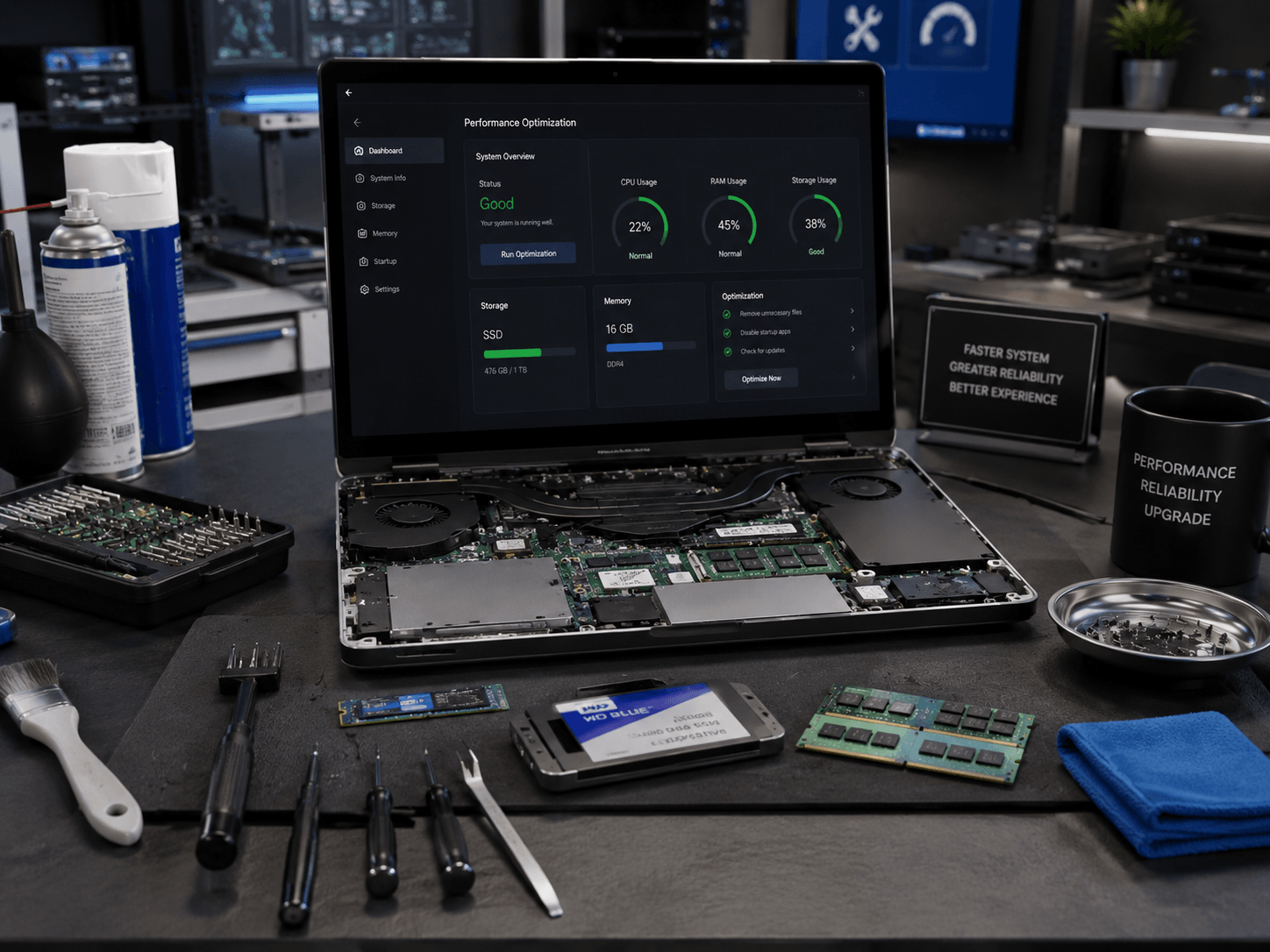
Some laptops feel slow only in certain tasks, while others struggle all the time. Typical signs include:
- Long boot time
- Applications taking too long to open
- Freezing or lag while switching apps
- Slow file copying and saving
- Browser tabs reloading often
- Fan noise and heat buildup
- Stuttering during video calls
1. Low Storage Space
Windows needs free disk space for updates, temporary files, cache, and system operations. When the drive gets too full, performance can drop noticeably. Microsoft and HP both highlight limited storage as a common reason for slow performance.
What to look for:
- Drive nearly full
- Large Downloads folder
- Old videos, photos, and installers
- Desktop clutter stored on the main drive
Best fix: Delete unused files, move large media to external storage, and keep at least 15–20% of the drive free.
2. Hard Disk Drive Instead of SSD
If your laptop still uses a traditional hard drive, that alone can make the system feel slow. Mechanical drives are much slower than SSDs for booting Windows, opening apps, and loading files.
| Storage Type | What It Feels Like | Typical Outcome |
|---|---|---|
| HDD | Slower startup and longer wait times | Most common upgrade candidate |
| SATA SSD | Large performance improvement | Much faster boot and app loading |
| NVMe SSD | Very responsive and modern feel | Best performance on supported systems |
For many older laptops, an SSD upgrade is the most visible performance improvement you can make.
3. Not Enough RAM
RAM affects multitasking. If memory is limited, your laptop may slow down when opening several browser tabs, using Office apps, joining video calls, or switching between programs. Memory pressure and related slowdown are also mentioned in HP’s performance guidance.
Typical RAM guidance:
- 8GB for basic personal use
- 16GB for office work and multitasking
- 32GB or more for heavy creative or technical work
4. Too Many Startup Programs
Many laptops load unnecessary apps automatically when Windows starts. Microsoft specifically points out startup apps as a common cause of poor performance, and Lenovo also recommends disabling unnecessary startup items.
What usually slows startup:
- Chat and sync apps
- Update assistants
- Cloud backup tools
- Old software you rarely use
5. Background Apps and Memory Leaks
Sometimes a laptop becomes slow because apps keep running in the background and gradually consume more memory. HP notes that incompatible apps and memory leaks can cause systems to slow down over time.
This often shows up as:
- High RAM usage with no obvious reason
- Apps becoming less responsive after long use
- Browser slowdown after hours of work
6. Overheating
Heat is a serious performance killer. When a laptop gets too hot, the processor may reduce speed to protect the hardware. Microsoft’s Surface guidance explicitly links overheating and heavy workloads with slower performance, and HP recommends checking and cleaning air vents.
Common causes:
- Dust inside the cooling path
- Blocked air vents
- Aging thermal paste
- Heavy loads for long periods
7. Outdated Windows, Drivers, or Firmware
Outdated software can make a system feel slower and less stable. Microsoft recommends installing Windows and optional driver updates as part of performance improvement.
Why updates matter:
- They can improve compatibility
- They often include performance fixes
- They can resolve hidden bugs
8. Malware or Unwanted Software
Malware, adware, and other unwanted programs can use resources in the background and slow the device down. If your browser opens strange pages, pop-ups increase, or the laptop behaves unpredictably, security cleanup should be part of the diagnosis.
9. Browser Overload
Sometimes the laptop is not the issue at all — the browser is. Too many tabs, heavy websites, and extension overload can make even a good laptop feel slow.
- Too many open tabs
- Too many extensions
- Video-heavy websites
- Old cached data
10. Aging Hardware
Microsoft notes that older PCs with outdated hardware may not improve much with software tweaks alone, and hardware replacement or upgrade may be the better long-term answer.
If your laptop feels slow even after cleanup, updates, and a restart, the processor, storage, or memory may simply be behind modern demands.
Quick Performance Fix Checklist
- Free up storage space
- Remove unused startup apps
- Close unnecessary background apps
- Run security scans
- Install Windows and driver updates
- Clean dust from vents and fans
- Check RAM usage during multitasking
- Consider SSD and RAM upgrades if needed
When to Upgrade Instead of Replace
If the laptop is otherwise in good condition, upgrades often make better financial sense than replacing the whole device.
| Problem | Best Solution |
|---|---|
| Slow boot time | SSD upgrade |
| Lag while multitasking | RAM upgrade |
| Random slowdowns | Startup cleanup and software optimization |
| High heat and fan noise | Internal cleaning and thermal service |
Not sure what is slowing down your laptop?
Some issues are software-related, while others point to storage, memory, cooling, or aging hardware. A proper diagnosis helps you choose the right fix.
Get Expert AssistanceFrequently Asked Questions
Why is my laptop running slow even after restart?+
This usually points to storage issues, background apps, insufficient RAM, overheating, or outdated software. Microsoft and HP both list these as common performance causes.
Will an SSD make my laptop faster?+
In most older systems, yes. Replacing a mechanical hard drive with an SSD usually improves boot time, app loading, and overall responsiveness significantly.
How much RAM do I need for normal work?+
8GB is fine for light use, but 16GB is a better target for office work, multitasking, and modern browsers.
Can overheating slow down a laptop?+
Yes. When temperatures rise, laptops may reduce performance to protect internal components. Cleaning vents and improving cooling can help.
Is it better to repair or replace a slow laptop?+
If the issue is RAM, storage, dust, or software, repair and upgrade are often enough. If the laptop is very old or the hardware is outdated, replacement may be the smarter long-term choice.
Final Thoughts
A slow laptop is frustrating, but it is usually fixable. The most common causes are storage limits, startup overload, low memory, overheating, malware, outdated software, browser bloat, and aging hardware. Microsoft, HP, and Lenovo all identify these as key performance factors.
Once you know which of those is affecting your system, the next step becomes much clearer: clean, optimize, upgrade, or replace.